Claude Desktop vs. Claude Cowork vs. Claude Code
Who this is for: Researchers who have used Claude Desktop and are wondering whether Claude Code — or the newer Claude Cowork — is worth the extra step.
Four tools, one model
Anthropic now offers four ways to use Claude for document-heavy work. They all use the same underlying model. What differs is the environment — what Claude can reach, what it can do, and how much control you have.
| Claude Desktop (Chat) | Claude Cowork | Claude Code Web | Claude Code | |
|---|---|---|---|---|
| Interface | Graphical chat | Graphical desktop app | Browser | Terminal or Desktop Code tab |
| Local file access | Upload only | Yes — read + write | No (cloud repos) | Yes — read + write |
| Batch / folder processing | No | Yes (with reliability caveats) | Yes (on remote repos) | Yes, reliable |
| Write output to disk | No | Yes | Yes (to repo) | Yes |
| Run scripts internally | No | Yes (contained environment) | Yes (cloud sandbox) | Yes (visible, system tools) |
| Project memory (CLAUDE.md) | No | No | Yes | Yes |
| Cross-session memory | Via Projects | No | Via CLAUDE.md | Via CLAUDE.md |
| MCP integrations | Yes (limited) | Yes (extensive — Drive, Gmail, GitHub…) | Yes (configurable) | Yes (configurable) |
| Custom skills | No | No | Yes | Yes |
| Terminal required | No | No | No | No (Desktop Code tab) / Yes (terminal) |
| Stability | Production | Research preview | Production | Production |
| Usage caps (Pro) | Standard | Hits limits faster | Standard | Standard |
| Setup effort | None | None (already in Desktop) | None — browser only | None (Desktop Code tab) or ~10 min (terminal) |
Claude Desktop (Chat): the baseline
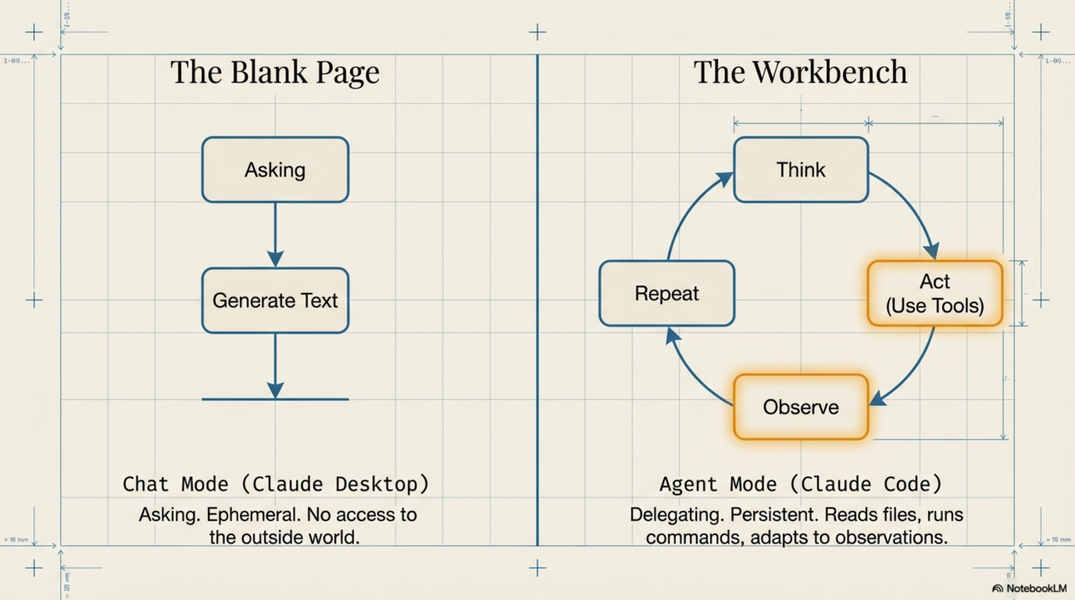
A polished chat interface. You type, Claude responds. Files must be uploaded manually; output lives in the chat window and must be copy-pasted out. Each new conversation starts blank unless you use Projects to persist files.
Best for: One-off questions, quick drafting, single-document tasks where you do not need the output saved anywhere. The right tool when you want a conversation, not a workflow.
The ceiling: Anything systematic — multiple files, repeating a task, writing output directly to a folder — is impractical. See A.issue.upload-dance for why this friction adds up.
Claude Code Web: zero-setup agentic work
Available at claude.ai/code. Runs Claude Code in a browser with no installation — nothing to download, nothing to configure. Works on any desktop browser and on the Claude iOS app.
What it does well:
-
Full Claude Code capabilities on repos you connect (GitHub)
-
No local machine required — run tasks from any computer or your phone
-
Kick off a long-running task and check back when it is done
-
Run multiple tasks in parallel in separate browser tabs
What it does not do:
-
No access to local files. It works with remote repositories (GitHub), not your local disk. If your sources live on your own machine, you need Cowork or the terminal/Desktop Code.
-
No persistent local environment. Each session runs in a cloud sandbox — local Python packages, tools, and paths are not available.
When to use it: You want to try Claude Code with zero friction, you are working with a GitHub repo, or you are away from your usual machine. Not a replacement for local Code if your work involves files on your disk.
Claude Cowork: agentic Desktop, for non-technical users
Anthropic's own description: "Cowork brings Claude Code's agentic capabilities to your desktop."
You give Claude access to folders on your computer. You describe a task. Claude works through it autonomously, running Python and shell commands in a background Linux VM you never see, reading and writing files on your disk. You can step away; it reports back when done.
Available to all paid subscribers (Pro and above) on Windows and macOS. No terminal. No installation beyond what you already have.
What Cowork does well:
-
File organisation and renaming at scale
-
Batch document processing (PDFs, DOCX, XLSX)
-
Connecting to external services via MCP (Gmail, Google Drive, GitHub, and hundreds more)
-
Autonomous multi-step tasks where you describe the outcome and let Claude work
What Cowork does not do:
-
No project memory. There is no CLAUDE.md equivalent. Every Cowork session starts blank — Claude does not remember your previous sessions, your project conventions, or your preferences unless you explain them again. For ongoing research projects this is a significant limitation.
-
No custom skills. You cannot define
/to-mdor/extract-personsshortcuts. -
Less control. You cannot inspect or adjust what Claude is doing mid-task as clearly as in Code.
Execution environment: Cowork runs in "a contained space on your computer." On macOS it requires Apple Silicon (M1 or later) — it is not available on Intel Macs. On Windows it runs on all supported hardware. The contained environment may bundle its own tools; if you need specific Python packages or scripts, test whether they are available before relying on them.
The safety caveat — important for archival researchers: Cowork is a research preview and agent safety is still in development. One documented case: a user's ambiguous "clean up" instruction resulted in 11GB of files being permanently deleted. Cowork acts on your filesystem with real consequences. Before giving it access to any folder containing irreplaceable materials:
-
Grant access only to specific folders, not your entire disk
-
Keep original source materials in a separate folder that Cowork cannot reach
-
For any file organisation or deletion task: ask Claude to list what it plans to do and confirm before acting
-
Treat Cowork like a capable but new assistant who does not yet know your filing conventions
Usage limits: Pro plan subscribers can use Cowork but hit limits faster than Code. Heavy batch tasks may exhaust your weekly allowance.
Claude Code: the workbench
Claude Code runs either in the Claude Desktop app's Code tab (no installation needed, visual interface with built-in editor and diff view) or in a terminal (full control, CLAUDE.md project memory, custom skills). Both use the same underlying model and agent loop; they differ in what the interface exposes.
Desktop Code tab — available to Pro subscribers; still rolling out (may not appear for all users yet). Runs Claude Code underneath and shares all configuration with the terminal version: same CLAUDE.md project memory, same custom skills, same hooks and MCP servers. Adds a visual diff view, a built-in editor, and git integration visible in the interface. No terminal required. Uses system tools — if your task requires Python, Python must be installed on your machine; the Code tab does not bundle it.
Terminal Claude Code — the same Claude Code, accessed via a terminal. Shares all configuration with the Desktop Code tab (CLAUDE.md, skills, hooks, settings files). Gives you direct visibility into every tool call; required for workflows that involve cloning repositories, scripting, or automation. Also uses system tools. The terminal is the only unfamiliar part — the actual interaction is plain English, the same as Desktop.
Claude Code is the production-grade, fully controllable option. It has been stable longer, has no usage caps beyond the normal model limits, and is designed for the kind of systematic document work that defines research workflows.
What Code adds that Cowork does not have:
-
CLAUDE.md project memory — persistent context loaded automatically every session; Claude knows your project without you re-explaining it
-
Custom skills — define
/to-md,/extract-persons,/add-to-logonce; use them forever -
Full control and visibility — you see every tool call; you can interrupt, adjust, redirect at any point
-
Reliability for complex multi-step tasks — Claude Code was built for this; Cowork can stall
-
No usage caps — process 40 PDFs in one session without hitting a weekly limit
-
Local Python environment — Claude can install packages, use your local data files, integrate with anything on your machine
The only real barrier: The terminal. Opening a terminal, typing cd Documents/project, typing claude — this is the full extent of the technical requirement.
How to choose
Use Desktop (Chat) when:
-
You have a single quick task or question
-
You want a conversation, not a workflow
-
The task is truly one-off
Use Claude Code Web when:
-
You want Claude Code capabilities with zero installation
-
You are on a shared/unfamiliar machine
-
You are working with a GitHub repository
-
You want to try agentic Claude before committing to a local setup
Use Cowork when:
-
You have tried Claude Desktop and want to stop manually uploading files
-
Your tasks are relatively self-contained — "organise this folder", "process these documents"
-
You work heavily with Google Drive, Gmail, or other SaaS tools
-
You are willing to work within a research preview (and will verify before destructive actions)
-
You want agentic capability without the terminal
Use Code when:
-
You have ongoing projects that need persistent context (CLAUDE.md)
-
You are doing systematic corpus work — batch extraction, repeated processing
-
You need reliability for complex multi-step tasks
-
You want custom skills and full control over what Claude does
-
You are willing to spend 10 minutes on setup in exchange for the most powerful option
Beyond the three tiers
Two additional ways Claude can reach into your work environment — neither replaces the three tiers, but both extend what Claude can see and do:
Claude for Chrome — a browser extension that opens Claude in a side panel while you browse. Can read the current page, draft Gmail responses, and act on web pages autonomously. Useful for in-browser reading and email; not a substitute for project-level work. Carries a prompt injection risk not present in the other tools. → A.adjacent.tools
Google Workspace connectors — connect Claude directly to Gmail, Google Calendar, and Google Drive within a claude.ai or Desktop conversation. Claude can search your email, create calendar events, and read Drive documents without manual copy-pasting. Available on all paid plans. → A.adjacent.tools
Do you have to choose permanently?
No. These tools complement each other. A reasonable pattern for a DISSINET researcher:
-
Desktop (Chat) — quick questions, explaining a concept, brainstorming a research question
-
Code Web — trying something out on a GitHub repo from any machine, or when away from your desk
-
Cowork — ad hoc tasks with external services (search Drive, check email, reorganise a messy folder)
-
Code — ongoing project work, archival corpus processing, anything where project memory and reliability matter
Think of Desktop as the notepad, Cowork as the capable office assistant, and Code as the dedicated research workbench.
The terminal is not the obstacle you think it is
For researchers who are hesitating before the terminal — the actual interaction in Claude Code is plain English, exactly like Desktop. The terminal is the door. Once you are through it, you type your research questions and Claude responds.
What you actually do to start:
1. Open a terminal (Mac: Cmd+Space → Terminal; Windows: search → PowerShell)
2. Type cd Documents/my-project and press Enter
3. Type claude and press Enter
4. Type your request in plain English
That is the full extent of the technical interaction. Everything after step 3 is the same as Desktop.
Reference: Navigating the Claude Desktop App — Anthropic tutorial — official walkthrough of the Chat / Cowork / Code tabs in the Desktop app.
Related
-
A.issue.upload-dance — the friction that Cowork and Code both solve
-
A.concept.under-the-hood — how all three tools work technically
-
A2.desktop-basics — getting the most out of Desktop
-
A3.code-basics-non-programmers — installing and using Code
-
A.concept.agents — agent mode, trust, and supervision — relevant for both Cowork and Code