A. Connecting Claude to Zotero via MCP
Purpose: Step-by-step installation of zotero-mcp — the MCP server that gives Claude direct access to your local Zotero library. Covers two paths: installation on Windows for Claude Desktop, and installation in WSL for Claude Code. The two paths are different because of a fundamental network issue between WSL2 and Windows-hosted applications.
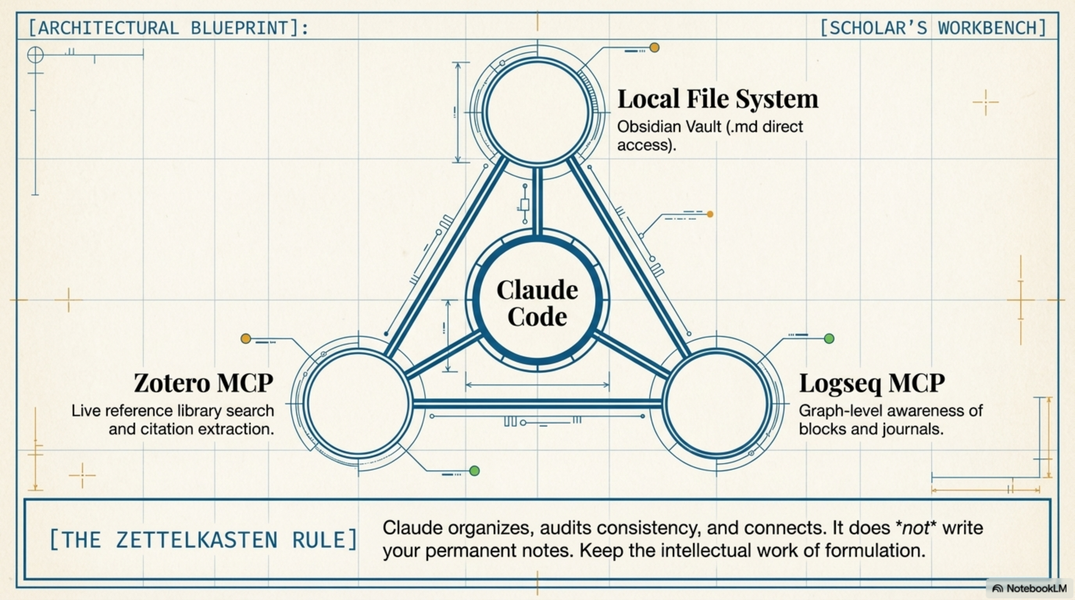
For what Claude can do with Zotero once connected, see A10.claude-and-zotero.
What this enables
Once installed, Claude can directly access your Zotero library without any copy-pasting. From any Claude session you can ask:
-
"Find everything in my library about Cathar networks in Languedoc"
-
"What do my notes on Biller 2012 say about inquisition procedure?"
-
"List all items tagged 'heresy' that were published after 2015"
-
"Find papers conceptually similar to this passage..." (semantic search)
-
"Add this paper to my library: https://doi.org/..." — fetches metadata + open-access PDF automatically
-
"Has this paper been retracted?" (with
[scite]extra) -
"Extract the full text of the PDF attached to this item"
Claude gets read and write access to your library: search, retrieve metadata, read notes and annotations, create notes, add items by DOI or URL, and find duplicate entries. It does not modify your library unless you explicitly ask it to.
Before you start
You need:
-
Zotero 7 or later installed and running on your machine
-
Python 3.10 or later
-
uv— the Python package manager used for installation -
A few minutes and a terminal window
Recommended but optional:
- Better BibTeX plugin for Zotero — improves metadata extraction and citation key handling
Choose your path:
| Your setup | Your path |
|---|---|
| Claude Desktop on Windows | Path A: Windows native |
| Claude Code in WSL | Path B: WSL with web API |
Step 0: Enable Zotero's local API
This step is the same for both paths. Zotero must be running and have its local API enabled.
- Open Zotero
- Go to Edit → Preferences → Network (Windows) or Zotero → Settings → Network (Mac)
- Check "Allow local API connection"
- Click OK
Zotero will now accept connections on port 23119. Leave Zotero running.
Step 0b: Install uv (if not already installed)
uv is a fast Python package manager. If you do not have it:
On Windows (PowerShell):
winget install astral-sh.uv
Or download the installer from https://docs.astral.sh/uv/
In WSL (Ubuntu/Debian):
curl -LsSf https://astral.sh/uv/install.sh | sh
source ~/.bashrc
Verify with uv --version.
Path A: Windows native (for Claude Desktop)
This is the simpler path. Everything runs on Windows, Zotero is on Windows, zotero-mcp is on Windows — no network boundary to cross.
1. Install zotero-mcp
Open PowerShell and run:
uv tool install zotero-mcp-server
To include optional features, install with extras:
uv tool install "zotero-mcp-server[pdf]"       # PDF outline extraction, EPUB support
uv tool install "zotero-mcp-server[scite]"     # citation counts + retraction alerts
uv tool install "zotero-mcp-server[all]"       # everything including semantic search
If installation fails, try installing directly from the source repository:
uv tool install "git+https://github.com/54yyyu/zotero-mcp.git"
2. Run setup
zotero-mcp setup
This will:
-
Ask a few questions about your configuration
-
Automatically update your Claude Desktop configuration file
-
Set up the semantic search database (takes a few minutes on first run)
The setup command is smart: you can re-run it at any time and it will preserve existing settings.
If you want to skip semantic search (saves time and avoids high CPU at idle):
zotero-mcp setup --skip-semantic-search
Semantic search enables conceptual queries ("find papers similar to..."). If you skip it, basic keyword and metadata search still works fully.
3. Restart Claude Desktop
Close and reopen Claude Desktop. Zotero tools should now be available. You can verify by starting a conversation and asking: "What tools do you have for Zotero?"
Path B: WSL (for Claude Code)
The critical issue: There is a known, unresolved bug in zotero-mcp: when it runs inside WSL2 and Zotero runs on the Windows host, the local API connection fails. WSL2's network stack treats localhost as the WSL container itself, not Windows — so zotero-mcp cannot reach Zotero on port 23119.
The solution: Use zotero-mcp's web API mode instead of local mode. Web API mode connects to your Zotero account via the internet rather than directly to the desktop application. This requires a Zotero account (free) and an API key.
1. Get your Zotero API key and library ID
API key: 1. Go to zotero.org/settings/keys 2. Click "Create new private key" 3. Give it a name (e.g. "Claude") 4. Under permissions, check "Allow library access" (read-only is sufficient for most uses) 5. Save — copy the key, you will only see it once
Library ID:
1. Go to zotero.org/settings/keys
2. Your personal library ID is shown at the top of the page (a 7-8 digit number, e.g. 1234567)
3. Group library IDs are listed under "Your Groups"
2. Install zotero-mcp in WSL
Open your WSL terminal and run:
uv tool install zotero-mcp-server
To include optional features:
uv tool install "zotero-mcp-server[pdf]"       # PDF outline extraction, EPUB support
uv tool install "zotero-mcp-server[scite]"     # citation counts + retraction alerts
uv tool install "zotero-mcp-server[all]"       # everything including semantic search
3. Configure for web API mode
zotero-mcp setup --no-local --api-key YOUR_API_KEY --library-id YOUR_LIBRARY_ID
Replace YOUR_API_KEY and YOUR_LIBRARY_ID with your actual values.
To also skip semantic search (recommended for now — semantic search in web API mode is slower):
zotero-mcp setup --no-local --api-key YOUR_API_KEY --library-id YOUR_LIBRARY_ID --skip-semantic-search
This creates a configuration file at ~/.config/zotero-mcp/config.json.
4. Add to Claude Code's MCP configuration
Claude Code reads MCP server configuration from ~/.claude/settings.json (global) or .claude/settings.local.json (project-level). To make Zotero available in all Claude Code sessions, add it to the global settings.
Open or create ~/.claude/settings.json and add:
{
  "mcpServers": {
    "zotero": {
      "command": "zotero-mcp",
      "args": []
    }
  }
}
If the file already has other content, add the mcpServers block alongside the existing keys — do not replace the whole file.
After saving, restart Claude Code (or start a new session). Verify with: "What Zotero tools do you have access to?"
5. Keep Zotero synced
Web API mode reads from your Zotero cloud sync, not directly from the desktop application. This means:
-
Your library must be synced to zotero.org to be visible to Claude
-
Items added locally that have not yet synced will not appear
-
Sync happens automatically if you have Zotero sync set up; to trigger manually, use Ctrl+Shift+S in Zotero
What you can do once connected
Search and retrieve
"Find items in my library about network analysis in historical research"
"Show me everything by Biller in my library"
"List items tagged 'primary source' added in the last month"
"Search my notes for references to 'confession procedure'"
Work with a specific source
"Get the full metadata for the item with key ABC123"
"Extract the full text of the PDF attached to [item title]"
"Show me my annotations on this paper"
"What notes do I have connected to [item title]?"
Synthesis tasks (the most useful)
"Here are ten items from my library [paste list]. What are the main
 methodological approaches represented?"
"Find the items in my collection that are most relevant to the question
 of how inquisitors understood voluntary confession — then summarise
 how each addresses it"
"Based on my notes on these items, what is the state of the debate
 about [topic]?"
Adding and managing items
"Add this paper to my Zotero library: https://doi.org/10.1234/example"
"Add the arXiv paper at https://arxiv.org/abs/2502.18864 to my library"
"Find duplicate items in my library and merge them"
Add by DOI or URL fetches full metadata automatically and attempts to find an open-access PDF. This lets you add papers to your library mid-session without switching to the Zotero desktop app.
Adding notes (use with care)
"Create a note on [item] summarising the key argument in 2-3 sentences"
Claude can write notes back to Zotero. This is useful but be deliberate: review what Claude writes before treating it as your own summary.
Citation integrity (requires [scite] extra)
"How many times has this paper been cited?"
"Has this item been retracted or issued a correction?"
"What is the citation breakdown for [item] — supporting vs. contrasting?"
Scite integration pulls citation tallies and retraction status directly into Claude's responses. Particularly useful when evaluating whether a methodology paper you are citing is still in good standing.
Known issues
High CPU usage at idle (semantic search). If you installed semantic search, zotero-mcp loads an embedding model at startup that uses significant CPU even when not in use. If this bothers you, reinstall with --skip-semantic-search.
Search notes returns no results. There is a known bug where searching note content returns nothing even when matches exist. A fix is in progress. As a workaround, ask Claude to retrieve notes by item rather than searching across all notes.
Dependency resolution failures on Windows. If uv tool install fails, try installing from the git repository directly (uv tool install "git+https://github.com/54yyyu/zotero-mcp.git").
Group libraries (local mode). Searching group libraries is not supported in local mode. Use web API mode if you need access to shared group libraries.
API key confusion. The setup process asks about API keys, which may prompt for an OpenAI key rather than the Zotero key. If you see unexpected prompts: you need the Zotero API key from zotero.org/settings/keys, not an OpenAI key (unless you want to use OpenAI embeddings for semantic search, which is a separate option).
Troubleshooting
Claude says it has no Zotero tools:
-
Check that the MCP server is listed in your settings file
-
Restart Claude Desktop / start a new Claude Code session
-
Run
zotero-mcp setupagain
"Connection refused" or similar errors (local mode):
-
Confirm Zotero is running
-
Confirm local API is enabled (Edit → Preferences → Network)
-
If in WSL, switch to web API mode (Path B above)
Rebuild the semantic search database:
zotero-mcp update-db --force-rebuild
Run this if semantic search produces errors or returns no results after a library update.
Verify your configuration:
cat ~/.config/zotero-mcp/config.json
Related
-
A10.claude-and-zotero — what Claude can do with Zotero: workflows, use cases, example prompts for research tasks
-
A.setup.windows-wsl — the Windows/WSL decision; context for why the two paths above differ
-
A.concept.agents — MCP servers as tools that extend Claude's capabilities; how Claude Code uses them
-
A4.conceptual-vocabulary — MCP explained for non-programmers
-
A.skills-ecosystem — the broader landscape: skills vs MCP servers, other research-relevant MCP servers (web search, filesystem, database), installation patterns
-
A.concept.under-the-hood — conceptual explanation of what MCP servers are and how Claude calls them
-
A.concept.global-vs-local — configuring MCP at global vs project scope
-
B.lifecycle.2.literature — how Zotero+Claude fits into the literature engagement phase of research